
Our family currently has multiple newspaper subscriptions which cover our local, state, and major US news stories. However, there’s a lot of news these days. Too much news. Our subscriptions don’t cover every article being shared or referenced online. Many of these newspapers paywall their articles in a desperate bid to stay afloat but it’s not financially feasible to subscribe to every newspaper I might ever want to read nor do I want all those newspapers having my personal information.
Today I was browsing a blog post with a bunch of links. One link was an article from The Washington Post titled “An Ivy League professor suspected AI cheating, so he decided to fight back.” The link contained a gift link, which was great, but required me to first create an account and give them my email address (and possibly more). I did not want to create an account. However, I did want to read the article. While there’s a couple of ways around this limitation, I decided to look the article up in my public library’s database.
Note: The information below is based on typical public library resources in the United States, though each library system will subscribe to a different collection of resources.
How do you find the newspapers your public library subscribes to?
The easiest way to access a specific newspaper article via the library is to ask your local friendly librarian to show you how to use their online resources. If you would rather spend time figuring this out yourself:
- If you don’t already have a public library card, get a library card. Check the library’s website for required documents. Most libraries will want a photo ID and proof of address. Depending on your area, you may be able to get multiple library cards. For example, most California residents can get a library card at public libraries across the state.
- Find your local public library’s website. If you have library cards from multiple public libraries, start with the biggest library for the widest selection or your local library if you’re looking for local news (examples: San Francisco, Seattle).
- Look for a link that says “Research”, “Online Resources”, or “Learn” and click on it (examples: San Francisco, Seattle).
- You will likely be given another set of menus at this point. Click on the menu that includes News or Newspaper (examples: San Francisco, Seattle)
Three categories of library newspaper access
- Limited direct access to a newspaper’s website
- Library provided newspaper apps
- Traditional library electronic databases
Limited direct access to a newspaper’s website
Some libraries provide direct three-day access to The New York Times and The Wall Street Journal. This access option is the most up-to-date and generally the best user experience. However, the newspapers require you to create an account so they have direct access to whatever your browser tells them about you (along with whatever you disclose directly). For example, when accessing The New York Times directly, my browser found six trackers and five ads (and this number can always increase). One other caveat, the number of daily access redemptions are limited so if your library has hit their limit, you may need to wait and try again on another day (or try another library).
San Francisco Public Library has information for how to get direct access to The New York Times and The Wall Street Journal. While these instructions are for San Francisco Public Library card holders, the steps are similar at other libraries that offer this type of access.
Personally, I use the New York Times subscription option frequently so I have bookmarked their “all-access link” so I can quickly get access three days at a time.
Library provided newspaper apps
The library reading apps try to mimic the feel of a paper newspaper. PressReader is one example of this type of app. It will likely have the current day’s news at the time of the print publication. When accessing The New York Times via PressReader, my browser found four trackers and one ad.
Here’s San Francisco Public Library’s information on using PressReader. Like the direct access above, the general steps are similar at other libraries.
Traditional library electronic databases
These are hard to use, may not have the most up-to-date coverage, and usually don’t include any graphics. Jaeger absolutely refuses to use them. On the upside, they probably have the least tracking of any of the options. When accessing The New York Times via ProQuest’s eLibrary, my browser found one tracker and zero ads. Mind you, it’s probably not no tracking, but less than the other options. It also can be a good option if you’re looking for an article that you know was published on a specific day but you don’t know the exact title.
Finding the Right Database
At a minimum, most libraries are going to have databases that include a couple of national newspapers and the local newspaper. The fastest way to figure out which database may have the newspaper you’re looking for is to call/chat the library and ask their reference/information librarian. Your local librarian will be ecstatic to answer a question that is something other than “where are the bathrooms?”. However, if you’d rather avoid talking to people, or it’s the middle of the night, there’s a couple of things you can try.
We already discussed how to find your library’s newspaper and magazine page. If you’re looking for The New York Times, that page will probably just tell you which database to use. It might also list specific local newspapers available. For example, on The Seattle Public Library’s website, it has a link for The Seattle Times.
If your library has many databases, they might subscribe to a periodical finder service which will allow you to look up magazines and newspapers by name and list which databases have that newspaper and what dates are covered. Though, sometimes these are really hard to find. The Seattle Public Library hides theirs in their newspaper list with a link called “Online Magazines, Newspapers & Journals”. San Francisco Public Library has a slightly more obvious “Periodical Finder” link on their eMagazines & eNews page.
If your library’s website doesn’t list the newspaper you’re looking for, and the library doesn’t have an obvious periodical finder, you’ll have to try the databases one-by-one. This may take time and persistence. One newspaper may be available in multiple databases. For example, The New York Times may be available from ProQuest’s eLibrary database, Gale’s Academic OneFile database, EBSCO’s MasterFILE Elite, and more. To make things even more confusing, ProQuest may offer several different databases that each contain The New York Times but some only contain historical articles while others include recent articles.
Whatever newspaper databases your library subscribes to, they’re probably provided by ProQuest, Gale, EBSCO, or Newsbank. So the good news is there’s only four user interfaces to learn.
Find which library database carries a specific newspaper
- Browse to the newspaper or library database section on the library website
- Click on the link for the database you think may have the newspaper (for example, Access World News, America’s News (NewsBank), eLibrary, Gale PowerSearch, and U.S. Major Dailies)
- This will probably direct you to a login screen. (As an aside, my Vivaldi browser doesn’t like the San Francisco Public Library EZ Proxy certificate so I use a backup browser for that one.) Enter your library card number and PIN/password. It should then redirect you to the database’s website
- Look on the page for something that says “Publications” or “A-Z Source List” and click. This should let you search for your newspaper by title.
- When scanning the results, look both for the right time period and that it has “full text” available.
- At that point, you can usually either browse by date or search for a specific article.
Recommendation: If there’s a newspaper you commonly reference, bookmark the database page so you don’t have to navigate the library website to find it again (and possibly forget which database you used).
Article Search Example
For this example, I’ll be looking for The Washington Post article titled “An Ivy League professor suspected AI cheating, so he decided to fight back”. I’ll be using Santa Cruz Public Library, since I have a library card there, but the general concept is the same at other libraries. It’s often useful to first try to access the newspaper article online. Yes, you’ll probably hit a paywall. However, you might get lucky, particularly if you’re in an incognito/private browser. Finding the article online first allows you to confirm the title and possibly the date it was published.
Note: there’s usually at least a 24-48 hour delay before articles are available in a library database so you may need to wait a day or two if the article was published today. In my case, I’m searching on July 17 and the article was originally published online on July 15 so it’s probably available in some library database.
- I’m going to go to Santa Cruz Public Library’s website and click on Research
- Next, I’m clicking on the Articles, News, & Encyclopedias link
- The resulting page is broken down into categories so I’m going to scroll down to the “Newspapers & Magazines” section
- I’m going to click on America’s News (Newsbank) because it says it includes “vetted news sources spanning the U.S.”
- Now I get a login screen where I must enter my Santa Cruz library card number and my password and then click to login
- I’m now taken to Newsbank’s website. At this point, I could click on their A-Z Source List and search for The Washington Post. However, since I know the specific article I’m looking for, I’m just going to put that article title in the search box, tell the search I want that exact match by enclosing it with quotation marks, and click Search.
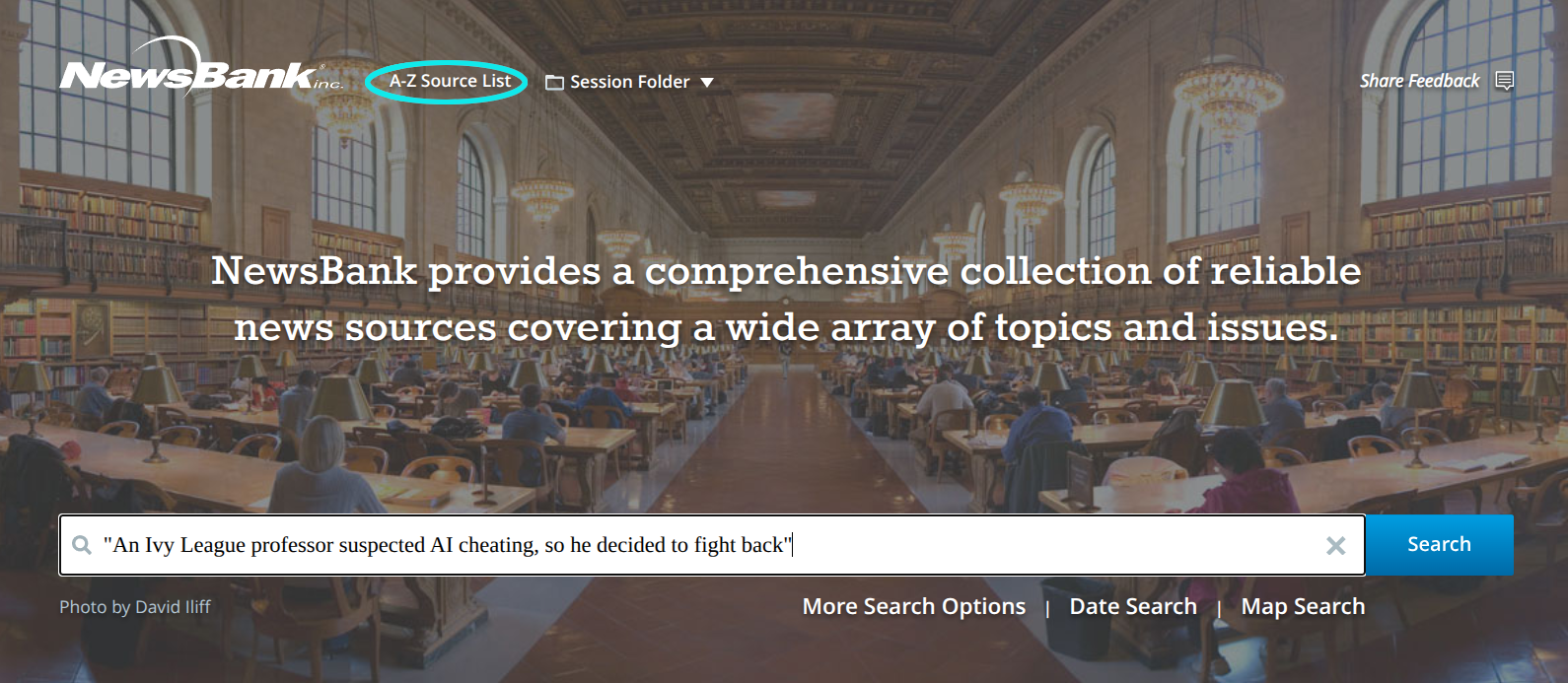
- Alas, that search returned no results so I’m going to go back to my list of potential databases
- I’m going to click on the next promising link in that list which is Gale PowerSearch
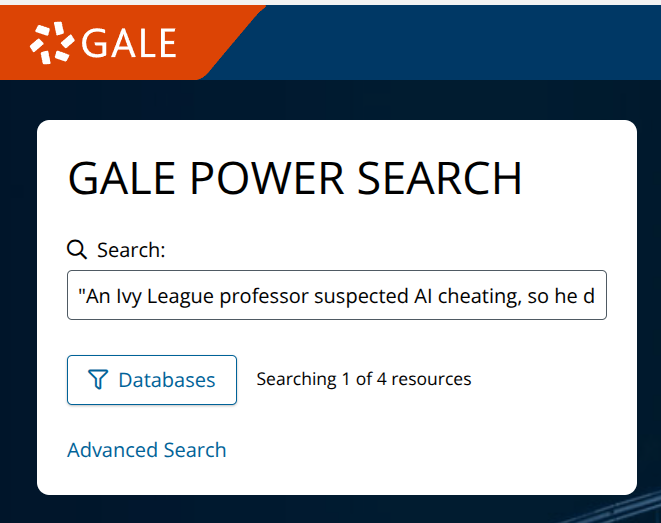
- This time it takes me directly to Gale’s website because it remembers I previously logged in with my library card. In this case, I could click on its Go to Publication Search link to see if this database contains The Washington Post but, like before, I’m going to take the easy way and just search for my article.
- This time, I’m successful! I can access the full text by clicking on the article’s title
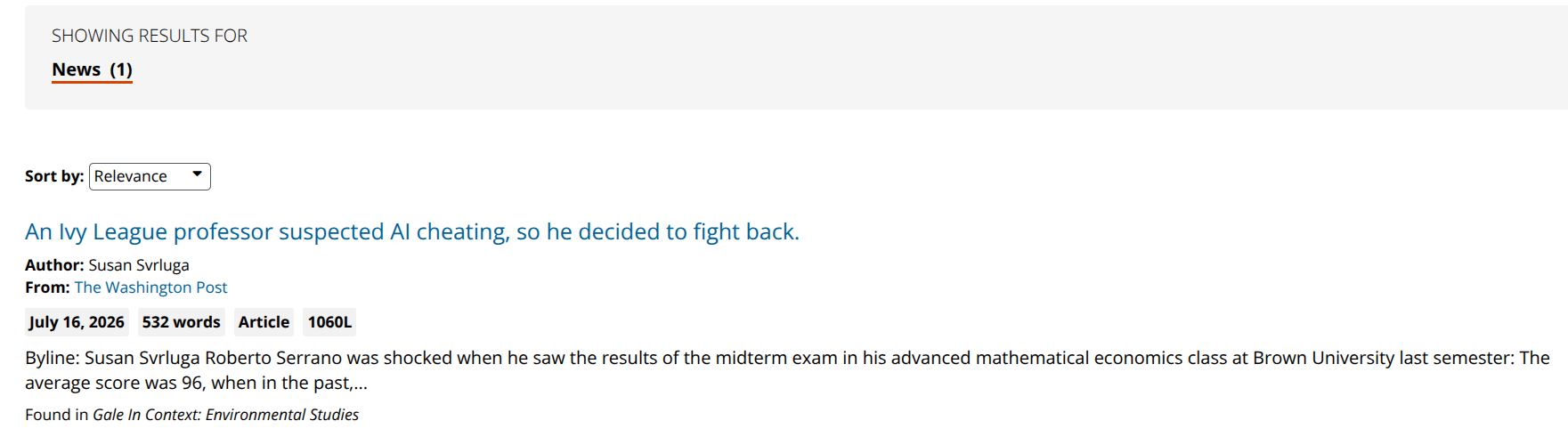
- After clicking the article, in addition to reading, this database vendor also allows me to download a pdf or email it.
I admit, searching library databases can be tedious and frustrating. It’s disappointing they aren’t easier to use. However, there is a wealth information hidden in them.